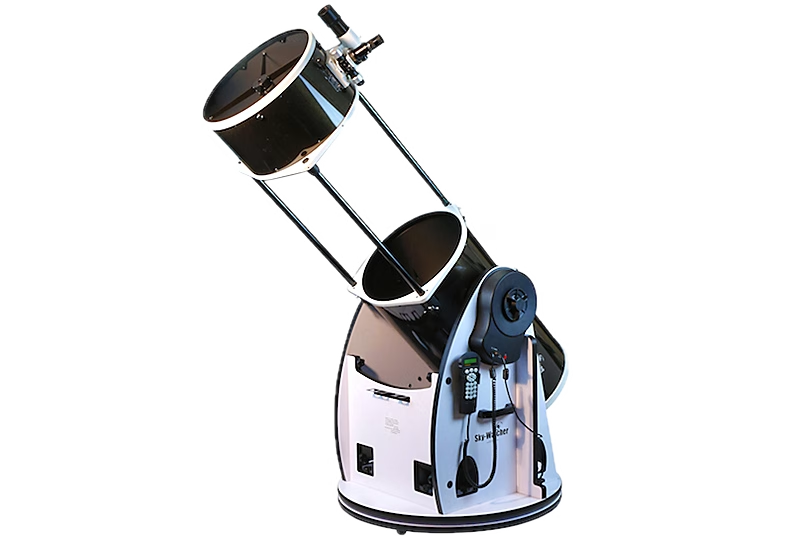
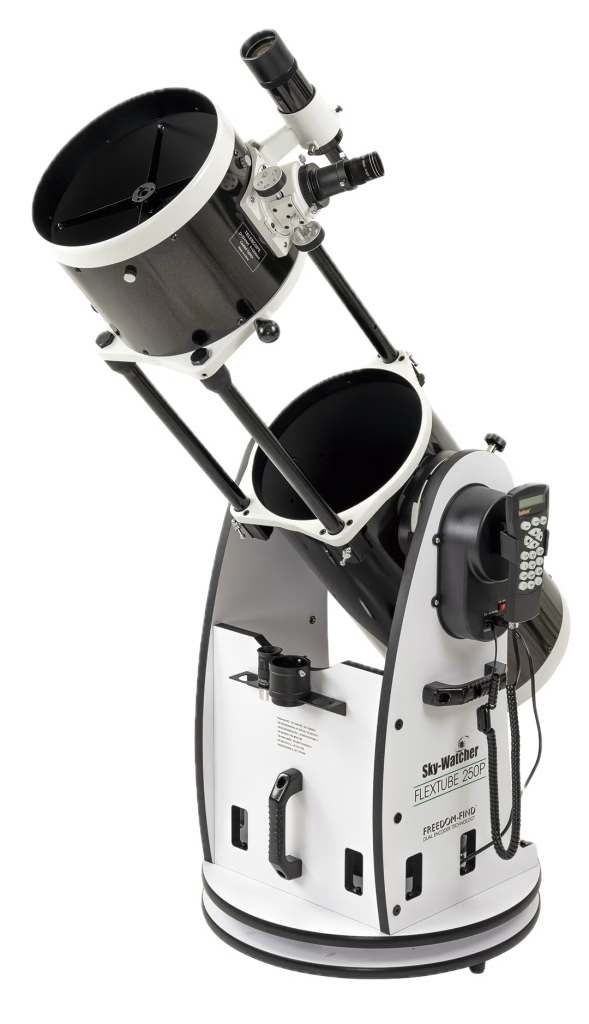
You've just unpacked your brand-new Dobson GoTo Sky-Watcher - perhaps a 200, 250 or the famous 305P FlexTube SynScan - and you can't wait to discover the wonders of the deep sky without searching for your targets for hours. You launch the alignment, carefully center your first star... then, as the telescope sets off for the second, it points straight towards the zenith or away from the expected sky.
Don't panic: your telescope has not broken down. In the vast majority of cases, the problem is due to a minor error in the initialization procedure. Here's a step-by-step guide to correcting it.
Why your Dobson GoTo is aiming at the wrong target
The Dobson GoTo Sky-Watcher (FlexTube SynScan range, from 203mm to 406mm) uses a motorized altazimuth mount. Unlike an equatorial mount, it is not aligned on the polar axis: the telescope relies entirely on a mathematical model calculated from your geographical position, precise time and alignment stars to know where each object is in the sky.
If even one of these data points is wrong, the model is distorted, and the telescope points off, sometimes very far off.
The 5 most common causes
1. Date, time and time zone incorrectly entered
This is by far the most common error. The SynScan paddle uses the American date format (mm/dd/yyyy), which confuses many French-speaking users. If you enter April 8 as «08/04/2026» when the snowshoe expects «04/08/2026», you've just told the telescope that it's a different day, and its sky map will be out of sync.
Please check :
Date format: mm/dd/yyyy (month first)
Exact local time (to the minute)
Time zone : +01 in winter, +02 summer time (for Switzerland and France)
Daylight Saving : Yes during daylight saving time, No in winter
2. Incorrect geographical coordinates
The snowshoe asks for your longitude and latitude. An error in the sign (E instead of W, or N instead of S) literally sends the telescope halfway around the world to find the stars.
Please check :
Latitude: degrees North (N) for the northern hemisphere
Longitude: degrees East (E) for Switzerland and Western Europe
In French-speaking Switzerland, values are around 46° N and 6-7° E.
Tip: write down your exact GPS coordinates once and for all on a post-it note attached to the snowshoe, to save time on every outing.
3. Incorrect home position
Before switching on the racket, the telescope must be in a precise reference position, the Home Position :
Front of tube pointing due north (note: not magnetic north)
To find geographic North with a smartphone compass, apply the magnetic declination, which is currently about 2° East for French-speaking Switzerland. In other words, you aim for magnetic North, then turn slightly to the right.
If the tube is not correctly positioned at start-up, the racquet will start with a reference offset which will affect all subsequent scores.
4. Dobson base no level
An altazimuth mount relies entirely on the assumption that its base is perfectly horizontal. Sloping ground, soft turf or an incorrectly set base are enough to introduce an error of several degrees.
5. Incorrect identification of the first star
This is the #1 mistake made by true beginners. The racquet suggests you center «Vega», but you're actually centering Deneb or Arcturus because they're bright and close. From that moment on, the aiming pattern is built on a false reference, and all subsequent targets will be off.
Solution: before validating the centering, open a free astronomy application such as Stellarium Mobile or SkySafari on your phone and visually confirm that the bright star you see is the one the racket is asking for.
The complete procedure to be redone cleanly
If your telescope is pointed incorrectly, don't try to correct it manually: start from scratch. It's quicker and more reliable.
1. Level the base. Place a spirit level on the rotating platform and adjust the feet until the bubble is centered.
2. Place the telescope in Home Position. Horizontal tube, opening due north. Unfold FlexTube and lock in place.
3. Switch on the racket and enter the data carefully:
Date in mm/dd/yyyy format
Exact local time
Time zone with the right seasonal difference
Precise GPS coordinates
4. Select «2-Star Alignment».
5. Confirm each star with Stellarium. Before confirming, make sure that the star centered in your eyepiece is the one displayed on the racket.
6. Choose the second star in a remote area. Ideally 60° to 90° apart in azimuth from the first, and with a different height. Two stars too close together give an inaccurate model.
If the problem persists
If, despite all this, your Dobson GoTo continues to point anywhere :
Check the batteries or power supply of the racket: low voltage disturbs motors and encoders
Make sure that the clutches are tightly packed, especially in azimuth
Check that you have not manually move the tube after alignment without disengaging the clutch, then re-synchronize
Update the SynScan firmware from the Sky-Watcher site, known bugs have been corrected over the years.
If after all this the problem is still there, it may be a hardware problem (encoder, motor, wiring) and you'll need to contact your dealer (or me if you bought it from DSA).
Our advice
A Dobson GoTo Sky-Watcher is a remarkable instrument that opens up access to thousands of objects, but it requires a bit of rigor to get started. The first five sessions are often frustrating, but that's normal - everyone goes through this. Once you've mastered the alignment routine, you can move straight on to observing without a second thought.
Take the time to enter your parameters correctly the first time and write them down: most scoring errors disappear after the second run.
To provide the best experiences, we use technologies such as cookies to store and/or access device information. Consenting to these technologies will allow us to process data such as browsing behavior or unique IDs on this site. Failure to consent or withdrawal of consent may adversely affect certain features and functions.
Functional
Always active
Storage or technical access is strictly necessary for the legitimate purpose of enabling the use of a specific service explicitly requested by the subscriber or user, or for the sole purpose of transmitting a communication over an electronic communications network.
Preferences
Storage or technical access is necessary for the legitimate purpose of storing preferences not requested by the subscriber or user.
Statistics
Storage or technical access used exclusively for statistical purposes.Storage or technical access which is used exclusively for anonymous statistical purposes. In the absence of a subpoena, voluntary compliance by your Internet service provider or additional third-party records, information stored or retrieved for this sole purpose generally cannot be used to identify you.
Marketing
Storage or technical access is necessary to create user profiles in order to send advertisements, or to track the user on a website or on several websites with similar marketing purposes.